
Guest list
Wedding Guest List Template in Google Sheets: 5 Easy Steps
Create a practical guest list in Google Sheets, with one row per person, consistent RSVPs and useful meal counts.
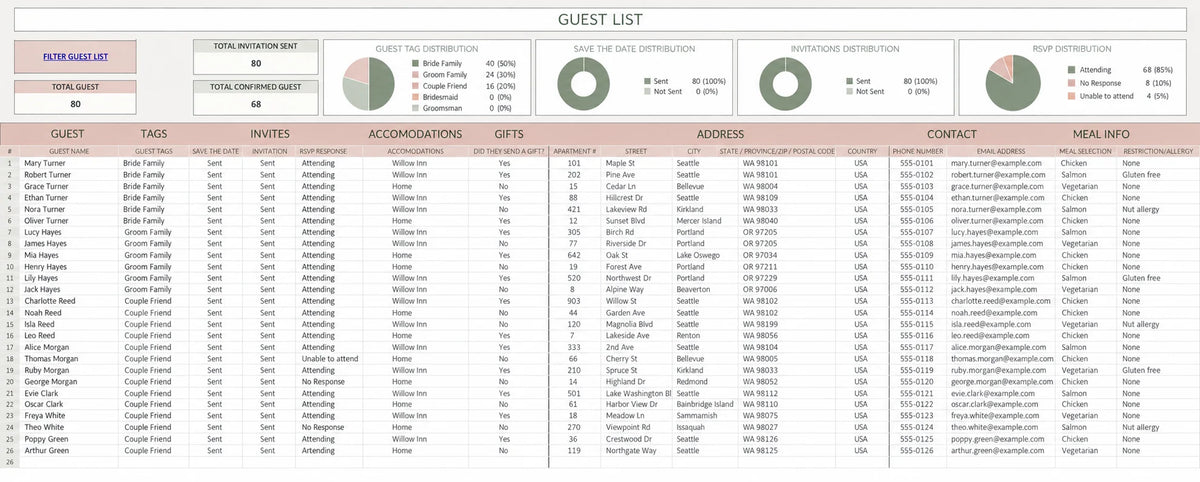
A wedding guest list template in Google Sheets helps you keep names, invitations, RSVPs and meal choices in one shared place. Start with one row per person so your headcount stays clear when couples, families and plus-ones reply.
You can build a simple DIY version using the layout below. If you prefer a ready-made option connected to your other wedding plans, AisleWedding offers a paid wedding planner with guest-management worksheets.
1. Create the columns you will actually use
Put these headings in row 1 of a blank Google Sheet:
| Column | Heading | What to record |
|---|---|---|
| A | Guest name | One person per row |
| B | Household | A shared label for related invitations |
| C | Your contact for that guest | |
| D | RSVP | Pending, Yes or No |
| E | Meal choice | The menu option selected |
| F | Dietary notes | Requirements to confirm with your caterer |
| G | Table | The assigned table, when decided |
| H | Invitation sent | The date or a consistent status |
Add address or accommodation columns if you need them. Keep separate rows for children and named plus-ones so a household of four does not become one counted guest.
2. Standardize your RSVP answers
Use a dropdown with Pending, Yes and No, and set new invited guests to Pending. In Google Sheets, select the RSVP cells and use Insert → Dropdown. Avoid mixing labels such as “coming,” “confirmed” and “yes” if you want a simple count.
Freeze the header row, then add a filter to the whole table. When sorting, keep every guest's details together by sorting the complete range rather than a single column.
3. Add simple headcount formulas
If RSVP answers are in column D, this formula counts confirmed guests:
=COUNTIF(D2:D,"Yes")
To count people still to follow up with, use:
=COUNTIF(D2:D,"Pending")
If meal choices are in column E, count confirmed vegetarian meals with:
=COUNTIFS(D2:D,"Yes",E2:E,"Vegetarian")
These examples use English function names and commas. Your sheet's locale may use different separators. Keep summary formulas outside the guest table and match the labels to the options you actually enter.
4. Share one master guest list
Give your partner access to the same file and agree who records replies. Limit access to the people who need the guest information. Before sending a list to a supplier, provide the confirmed details relevant to that supplier.
Keep the RSVP deadline visible and set a follow-up date before your caterer's final-count deadline. A spreadsheet records replies; it will not collect them automatically unless you connect a separate response process.
5. Connect the guest count to your budget
Review meals, drinks, rentals and transport whenever the guest count changes. Then update your wedding budget spreadsheet and check that your venue layout still works for the number attending.
Should couples and families share one row?
Use one row per person for headcounts, meals and seating. Give related guests the same household label when you want to group invitations. That keeps mailing groups separate from the number of people you are hosting.
Formula and setup references: Google Sheets COUNTIF, COUNTIFS and dropdown lists.


